Cloud or local network — whichever gets through.
MijiaBar reaches devices through the Xiaomi cloud and falls back to your local network when it has to. Away from home it skips the wait, and every device shows which path it took.
MijiaBar
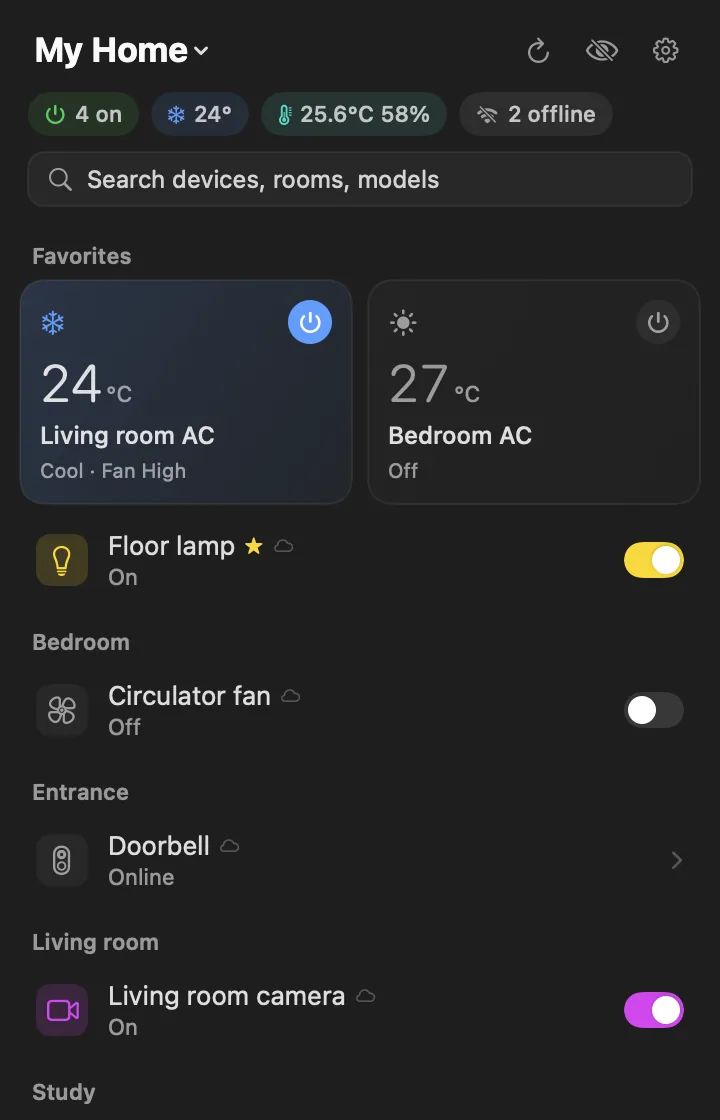
A pixel-art home at the top of the list, plus air conditioners, lights, fans and cameras — one click away, without reaching for your phone.
Free and open sourcemacOS 14 or laterApple silicon and Intel
MijiaBar is a Mac app. Open this page on your Mac to download it.
House cutaway
A pixel-art isometric cutaway sits at the top of your device list. Tap a fixture — lights, TV, air conditioner, entry light — to toggle the device it maps to.
Fixture by fixture.Turn on one light and only that corner lights up — not the whole room.
Day and night.Separate baked art for daytime and evening, following your Mac's local clock (~6:00–17:59).
Tap to toggle.Matched devices switch on or off right from the illustration.
Room to breathe.Enlarge opens a dedicated House window when you want a closer look.


Device pages
Each kind of device has its own page, with an illustration that changes as the device does. Airflow follows the fan speed, bulbs glow at their color temperature, and plugs show current flowing.

Air conditioners. Drag to set the temperature. Mode, fan speed and swing are one click each.

Lights. Brightness and color temperature, with a bulb that glows to match.

Fans. The blades turn at the speed you set, and coast to a stop when you switch off.

Smart plugs. See how much power is being drawn right now.

Heating. Colors follow the mode — cool blue for cooling, warm orange for heating.
Works with
From air conditioners to printers, the devices you use most get pages of their own. Everything else in Mi Home still works — MijiaBar builds its controls from the device's MIoT spec.





Live view
Live video plays right inside the device card. Pop it out into its own window when you want a closer look.
Only while you watch.The stream starts when you open it and stays on this Mac.
Nothing is recorded.Video is never saved, and your keys stay in the Keychain.
Off-limits to agents.The agent interface has no access to camera video.
Live view works when your Mac is on your home network.

Details
MijiaBar reaches devices through the Xiaomi cloud and falls back to your local network when it has to. Away from home it skips the wait, and every device shows which path it took.
English 简体中文 繁體中文
Scan the code with the Mi Home app — no password to type. Your session stays in the macOS Keychain.
Servers in Mainland China, Europe, the United States, Russia, Singapore and India.
Open the menu and do everything without touching the trackpad.
VoiceOver labels on every control, and Reduce Motion is respected throughout.
Follows your Mac's appearance, down to every illustration.
Signed updates install from inside the app. Every release is notarized by Apple.
For AI agents
MijiaBar comes with a command-line tool and an MCP server. Paste one message into Claude Code, Codex or Cursor and the agent sets itself up.
Read https://raw.githubusercontent.com/neardws/ and follow it to set up MijiaBar as your MCP tool. CLI path: /MijiaBar/ main/ docs/ AGENT_SETUP.md Applications/ MijiaBar.app/ Contents/ Resources/ bin/ mijiabar Don't change any device's state without my consent.
This assumes MijiaBar is in Applications. The same message, with your path filled in, is in Settings → Agent interface.
Confirm every write — each change waits for your OK in a dialog on your Mac.
list_devicesget_device_stateset_propertyrun_actionGet started
Download and installOpen the disk image and drag MijiaBar into Applications.
Scan to sign inClick the house in the menu bar, choose your region, and scan the code with the Mi Home app.
Allow local network accessWhen macOS asks the first time you control a device, click Allow so MijiaBar can reach it directly.

A Mac with macOS 14 Sonoma or later — Apple silicon or Intel — and a Xiaomi account with devices in the Mi Home app.
No. It's an independent open-source project. It uses the same cloud API as the Mi Home app, plus the miIO protocol on your local network.
Every release is signed with a Developer ID and notarized by Apple. The source code is public on GitHub under the MIT license.
You sign in by scanning a QR code, so there's no password to type. Your session is stored in the macOS Keychain and is only sent to Xiaomi.
Yes. Choose your Mi Home server when you sign in: Mainland China, Europe, United States, Russia, Singapore or India.
Yes. Controls go through the Xiaomi cloud when your Mac isn't on your home network. Live camera view needs your home network.
Most likely. Devices without a page of their own still get controls built from their MIoT spec. If something doesn't work, let us know on GitHub.
From version 0.1.9 on, MijiaBar checks for updates by itself, and you can check any time in Settings. If you have 0.1.8 or earlier, download the latest version once.